OnFlight · By FlyProva
A little help for your next flight.
Start a room, get connected, or talk to us about the app.
Available now: OnFlight 1.1 for iPhone. The app is free, with optional Plus purchases.
Your first Flight Room
- Install before travelling. Everyone needs OnFlight on an iPhone with iOS 17 or later. Download while you have internet access. No OnFlight account is required.
- Meet at the gate. One person creates a room and shares its private invite or QR with the group. Join while you are nearby, add your seats and agree the plan.
- Follow the crew’s instructions. Keep Airplane Mode on in flight. Enable Wi-Fi or Bluetooth only where your airline permits. OnFlight does not bypass flight mode or guarantee a connection.

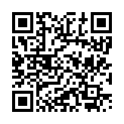
Use an iPhone for the app. The web demo is an illustrative preview with simulated sharing. Android and a native iPad app are not currently offered.
If your group cannot connect
- Check everyone has the app installed, is nearby, and is using the intended private room invite.
- Allow OnFlight access under iPhone Settings → Privacy & Security → Local Network. If it is not listed, reopen the app and try joining again to trigger the permission request.
- Keep Wi-Fi enabled where permitted, even when Airplane Mode is on. Keep the room owner’s app open for nearby sharing and try bringing the devices closer together.
- If needed, reopen the app and retry. Before leaving or ending a room, keep any notes you need: room content is temporary and purchase restoration does not recover it.
Availability depends on devices, permissions, distance and cabin conditions. Crew instructions always take priority. Seats are group observations, cabin orders are a checklist, and flight progress is an estimate. OnFlight does not connect to airline ordering, live seat or aircraft tracking systems.
OnFlight Plus
Free, shared and personal features
The core room, chat, seats, cabin-order checklist, landing plan, basic estimated progress and safety guidance stay free. Flight Guess is also free in 1.1.
Shared Plus: a verified Plus owner explicitly activates games, room styling and enhanced Recap for the current room. This can give room members access while the room grant is active; it does not transfer a purchase or unlock their personal Passport.
Personal Passport: your own Plus entitlement unlocks your personal travel history on this device. Saving a flight is your choice. Passport is not a cloud account or automatic cross-device backup.
Annual and Lifetime
Both options unlock the same current Plus capabilities. Annual is an auto-renewing subscription. Lifetime is a one-time purchase. Check the local price, billing period and terms shown by Apple in the app before confirming. Internet access is needed to load or buy purchases.
Buying Lifetime does not automatically cancel Annual. Check your Apple subscriptions separately if you no longer want Annual to renew.
Restore a purchase
Use Restore Purchases in OnFlight while connected to the internet and signed into the Apple Account used for the purchase. A shared room grant is not a purchase you own. Restoring eligible purchases can restore access; it does not restore deleted room messages or Passport history. If access is still missing, contact us with the app version and what you see. Do not send your Apple password or payment details.
Apple’s purchase restoration help
Manage or cancel Annual
On your iPhone, open Settings → your name → Subscriptions → OnFlight. Manage renewal there. Deleting the app does not cancel a subscription.
Manage or cancel an Apple subscription
Request a refund or get billing help
Use Apple’s refund process for App Store purchases. Eligibility depends on the purchase and applicable rights; a refund is not guaranteed. Cancellation and a refund request are separate actions. For an app problem, you can also contact FlyProva support.
Your room and your privacy
Read the OnFlight privacy policy for room data, local Passport storage, Recap sharing, website measurement and your rights. App purchases and website measurement are separate from private room content.
For a privacy request or an old waitlist sign-up, email support@flyprova.com. You can ask us to stop contacting you about a previous sign-up.
Talk to FlyProva
Tell us your OnFlight version, iPhone model, iOS version, and the steps that led to the issue. A redacted screenshot can help. Please leave out private room codes, other people’s messages, payment details and passwords.
Email support@flyprova.com ↗For a suspected security vulnerability, email work@flyprova.com with the subject “OnFlight security report”.